w7r.blogspot.com


About this Tutorial
This tutorial will show you how to rename a set of images to the same name with a number representing their original order. This is also called batch renaming.


A Few Simple Steps
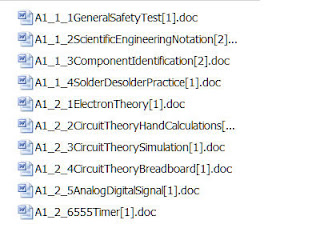
- Find and highlight the files you wish to rename
- Right click any of the highlighted files from the group. Then, select "rename".
- Type a new name that the group of files will share, such as "Zoo Photos"
- Click or press "Enter" once you have the desired group name for your files.
An Example
Start: 42124.jpg, 42125.jpg, 42126.jpg, 42127.jpg
Rename input: "Vacation"
End: Vacation (1).jpg, Vacation (2).jpg, Vacation (3).jpg, Vacation (4).jpg
Rename input: "Vacation"
End: Vacation (1).jpg, Vacation (2).jpg, Vacation (3).jpg, Vacation (4).jpg
Quick Tip:
If you want to select all files in a folder to group rename, simply press Ctrl and A simultaneously.


