w7r.blogspot.com
About Changing Labels
I realized how rediculous some of my Blogger labels were long ago and wanted to change them to a common format of Capitalizing every part to the label, such that bloggingtips would become BloggingTips.
It is just easier to read or find on my blog. Sadly, Blogger recognizes BloggingTips and bloggingtips as the same thing even though it is displayed with case sensativity. Any manual case changes (bloggingtips to BloggingTips) would become bloggingtips by default because it was a label first. So, having two blog labels that have the same characters, but with different format are not allowed. I see that a potential flaw in Blogger's services.
The good news is that I can help you accomplish the changes is format for your posts labels to make your blog labels more readable and organized!
It is just easier to read or find on my blog. Sadly, Blogger recognizes BloggingTips and bloggingtips as the same thing even though it is displayed with case sensativity. Any manual case changes (bloggingtips to BloggingTips) would become bloggingtips by default because it was a label first. So, having two blog labels that have the same characters, but with different format are not allowed. I see that a potential flaw in Blogger's services.
The good news is that I can help you accomplish the changes is format for your posts labels to make your blog labels more readable and organized!
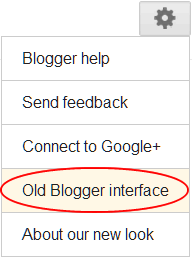
|
Go to the old Blogger interfaceBlogger Dashboard > Gear Icon > Old Blogger Interface |

|
Go to Edit PostsOld Blogger Dashboard > "Edit Posts" |

|
Locating Label PanelIt's on the left. |

|
Find Your TargetLocate the label you want to replace/edit and click it. |

|
Make a Copy of This PageDuplicate the window because the group of posts that all contain the targeted link will disperse from one another after removing the old label. |

|
Select Em' AllClick the link "All" that comes after "Select: " to check all of the posts that need to be changed (every single one should be checked or the change of post label will revert back to the old version automatically). |

|
Delete the Bad LabelDon't forget to duplicate this page before deleting the old label or you will not be able to find the same group of posts!Use the drop down menu, "Label Actions..." to use the "remove label" operation. Click the target label. Now the old label is gone. |

|
Making the New Label"Label actions..." > "Apply Label" > "New label" |

|
The New LabelType in the new label. It will be applied to all of the check marked posts. |

|
Success. You're done!All done! Hope that helped! |


