SEARCH W7R

Showing posts with label HowTo. Show all posts

Wednesday, December 19, 2012

Python 3.2 Tutorial 1: Hello World!

w7r.blogspot.com

Python 3.2 Tutorial #1: Hello World!


Tutorial 1 contents: Code, and explanation for HelloWorld.py followed by useful information about Python in general.


# HelloWorld.py
# Python 3.2 Tutorial Part 1
# w7r.blogspot.com
# Brian R. H.

# the main method/function
def main():
print("Hello World!")

# Call to main function
main()

How to Run HelloWorld.py on Your Computer!

Friday, June 29, 2012

Easy Ways to Decrease Home Page Load Time

w7r.blogspot.com

The Sad, but True Facts

The Big Factors

Unfortunately, not everyone has the same internet provider, connection, and/or browser as you do. Any one of those differences can determine whether your website loads in 1 second or 120 seconds. As you know, page viewers do not like to wait. In fact most visitors would rather research and try a different resource than a website that does not load in under 5 seconds.
  • internet provider
  • computer speed
  • web browser
  • device or computer
  • location
  • cache memory
  • bandwidth

Obviously, you cannot buy all of your readers Alienware super computers so to decrease page load time you must focus on your websites' internals.

Is Less More?

Wednesday, June 27, 2012

How to Create Email Links with HTML

w7r.blogspot.com

Copying and pasting an email address into the "To:" prompt of an email can be surprisingly unpleasant especially when the email benefits the receiver and not the sender.

In a blog such as W7R it is important to allow users to email you with as little effort as possible (without the copying and pasting).


About the Email Link Syntax

  • The 'a' is the same anchor tag used with website links
  • href is an HTML attribute of the anchor tag, 'a'
  • After href comes an = sign and a destination in parenthesis
  • The format for email destinations is mailto: + an email
  • Replace AnEmailAddress@gmail.com with your own email
  • </a> is a closing tag for an anchor

Friday, June 22, 2012

How to Change Blogger Post Labels

w7r.blogspot.com

About Changing Labels


I realized how rediculous some of my Blogger labels were long ago and wanted to change them to a common format of Capitalizing every part to the label, such that bloggingtips would become BloggingTips.

It is just easier to read or find on my blog. Sadly, Blogger recognizes BloggingTips and bloggingtips as the same thing even though it is displayed with case sensativity. Any manual case changes (bloggingtips to BloggingTips) would become bloggingtips by default because it was a label first. So, having two blog labels that have the same characters, but with different format are not allowed. I see that a potential flaw in Blogger's services.

The good news is that I can help you accomplish the changes is format for your posts labels to make your blog labels more readable and organized!


How To Change Blogger Post Labels

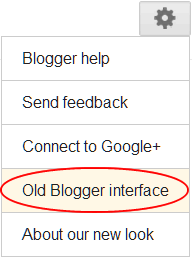
Go to the old Blogger interface

Blogger Dashboard > Gear Icon > Old Blogger Interface

Go to Edit Posts

Old Blogger Dashboard > "Edit Posts"

Locating Label Panel

It's on the left.

Find Your Target

Locate the label you want to replace/edit and click it.

Make a Copy of This Page

Duplicate the window because the group of posts that all contain the targeted link will disperse from one another after removing the old label.

Select Em' All

Click the link "All" that comes after "Select: " to check all of the posts that need to be changed (every single one should be checked or the change of post label will revert back to the old version automatically).

Delete the Bad Label

Don't forget to duplicate this page before deleting the old label or you will not be able to find the same group of posts!

Use the drop down menu, "Label Actions..." to use the "remove label" operation. Click the target label. Now the old label is gone.

Making the New Label

"Label actions..." > "Apply Label" > "New label"

The New Label

Type in the new label. It will be applied to all of the check marked posts.

Success. You're done!

All done! Hope that helped!

Tuesday, June 19, 2012

How to Center Adsense Ads on Blogger

w7r.blogspot.com

The concept applies to any blog.

The Directions

  1. Get on Blogger and click the "Template" tab.
  2. Click the button labeled "Edit HTML" and then click the "Proceed" button to reach the source code for your blog.
  3. At the top of your source code there will be a bar with a unchecked box that says "Expand Widget Templates". Check that box! You cannot find the code you need to alter without expanding the widget templates.
  4. With the "Expand Widget Templates" checked the source code below is even more in depth than it was before! (now it is showing additional code for widgets)

    Press Ctrl + F or manually open the Find module for your internet browser.
  5. In the Find moodule's text area, type adCode and press Enter to search the page for the Adsense code. It will look similar to the code below
    <b:if cond='data:blog.pageType != &quot;error_page&quot;'> <data:adCode/> </b:if> <b:include name='quickedit'/>
  6. Now insert <center> before and </center> after .
  7. Click the Preview button to make sure the change was made (and did not have any unwanted side effects). Click the Save template button and close your template if the preview passed inspection.
All we did was replace <data:adCode/> with <center><data:adCode/></center> which can be undone at any time in the template source code.

Saturday, August 20, 2011

How to Identify your IP Address on Windows

About: IP stands for Internet Protocol. It is like a phone number assigned to your computer when your connected to the internet.

Instructions To Locate Your IP address:
Windows XP:
  1. Click [Start] > select [Run] > type "cmd" > click [OK] >
  cmd.exe (command line prompt) appears
  2. Then, type "ipconfig" in the command line prompt (black panel) > press [Enter]
  3. Identify the targeted IP address, such as, "Default Gateway"
      The IP address will and is four numbers seperated by
      periods that have a value of 1 to 255.
      Example: 1.1.1.1 or 124.23.31.12
Windows Vista:
  1. click [Start] > type "command prompt" into the search box > press [Enter]
  2. Then, type "ipconfig" in the command line prompt (black panel) > press [Enter]
  3. Identify the targeted IP address, such as, "Default Gateway"
      The IP address will and is four numbers seperated by periods
      that have a value of 1 to 255.
      Example: 1.1.1.1 or 124.23.31.12
Windows 7:
  1. click [Start] > type "command prompt" into the search box > press [Enter]
  2. Then, type "ipconfig" in the command line prompt (black panel) > press [Enter]
  3. Identify the targeted IP address, such as, "Default Gateway"
      The IP address will and is four numbers seperated by periods
      that have a value of 1 to 255.
      Example: 1.1.1.1 or 124.23.31.12

For more information about IP addresses:
http://computer.howstuffworks.com/internet/basics/question549.htm
How To Clear Your History In Google Chrome In 3 Steps!

You should be on Google Chrome Internet Browser:
 1. Upper left hand corner: click the wrench and select "History"
2. Unless you want to hand pick certain items by checking the boxes next to the site name and URL, click "Clear All Browsing Data"
3. A window pops up and prompts you for your specific directions*
4. Left-click "Clear Browsing Data"
  
*I recommend checking all, except for Clear saved passwords. Leave saved passwords unchecked, unless you want to have to have the browser re-save them. Click the time span drop down button on the top of the panel, and select "The Beginning of Time."


Congratulations on clearing your Google Chrome internet browsing history. If you use more browsers than Google Chrome, your history from those browsers (Internet Explorer, Firefox, Opera, Safari) has remained the same. The process is moderately similar in all internet browsers, but I plan to have more tutorials on the subject for those who would like it. Thanks, -Brian

How to Email Anonymously

Have you ever been in a situation where a someone or some group is doing something wrong or needs harsh criticism? I mean, come on!, that kid in class who wouldn't stop annoying you by picking his nose, or the teacher that has ruined your GPA. Or how about the company that is screwing you over with lies!? I want to give you a resource so you can anonymize your feedback or comments via email. Before I write the link I want to make it clear I do not support any hateful comments and/or being sneaky. There is a right place and time for everything; so, use your noggin.

Anonymouse: http://anonymouse.org/anonemail.html
Send Anonymous Email: http://www.sendanonymousemail.net/
About: http://email.about.com/od/anonymousemail/qt/How_to_Send_an_Anonymous_Email.htm

Monday, August 15, 2011

Defragment your Hard Drives To Improve PC Performance

Defragmenting your hard drives can improve computer performance by saving space and organizing data. Today is your lucky day because I am going to show you how to defragment yours.

How to defragment your hard drive:
   1. Go to "Computer" (Press [windows] + E or [start] > "Computer")
   2. Right click the drive you wish to defragment 
   3. Select Properties
   4. Go to tab "Tools"
   5. Click "Defragment Now"

Sunday, August 14, 2011

How to Change File and Program Icons

The 6 easy steps:
   1. Locate the file icon that needs to be changed on your desktop
   2. [Right click] the file and select [Properties]
   3. Click the last panel labeled [Customize]
   4. Right click [Change Icon]
   5. Left Click [browse] to find your desired Icon image (64x64 pixels is the norm)
   6. [Double click] the image and exit the [window]

You can create your icons, use your operating system's icon, or borrow custom icons from google images and other sources to use. Have fun!

The Basics of Google Email Account


   This will seem elementary to many computer users, but, for the rest may be a life-saver. Creating an email is very simple with almost all Email Providers. Google Email (gmail) which has the extension "@gmail.com" is my email company of choice because it's free, comprehensive, fast, and is easy to use. 

How to Create an Email Account with Google: 
   1. Visit Google's web page  http://www.google.com/
   2. Click "Gmail" in the upper right hand corner.
   3. Click Create An Account on the left side of the page
   4. Fill in all the boxes and choices **Please write down your username (email) and password**
   5. Press"I accept. Create my Account" at the bottom.
   6. If the screen doesn't proceed, look for any missed choices (in red)

To Sign in to Your Gmail Account: 
   1. Visit Google http://www.google.com/
   2. Enter your user name and password in the box to the right
   2.5 Check the box for "Stay signed in if you wish to return to the page without logging out.
   3. Press "Sign in"

To View Your Emails In Your Inbox:
   1. Look on right of your screen and click "Inbox (x)"
   2. Double click any email in the list of emails to view a specific email.
   3. When you are finished with that email click "Inbox (x)" to view some more emails
   **Inbox is where your received emails will go**

To Send an Email:
   1. Click "Compose Mail" (I wish it said "Create Mail")
   2. Where it says "To:" write your friends email (myfriendsemail@gmail.com or whatever)
   3. Click on the big open area to type the contents of the letter.
   3.5 If you want to add a picture, program, or video (ect.) click "Attach file" (paper clip) and click
   "browse" and search through your files to find the desired attachment. 
   3.6 Select "Open" to upload the file to the email (it hasn't sent it yet!)
   4. Click "Send" to send the message or "Save Now" to store the message for later use
   (in Drafts).


Thursday, August 11, 2011

Change Image of Windows 7 Login Screen

 Good resource for those who want to spice up their computing experience: 
             youtube video for changing login image.
You can create or save an online .jpg image under 256KB to use for the login screen! Have fun!
-Brian 

Bonus Tip: Change the size of your icons: Right Click Desktop > [view] > select from small, medium, large icons

Wednesday, August 10, 2011

Defragment Your Hardrive!


What?
Defragmentation is a feature provided by Windows and various other OS's to clean up your hard drive!
It can take a while (hours) or it can be moderately quick (10 minutes). Depends on your computer.
Why?
 1. It will save space on your hard drive. And more space means more room for new programs and files.
 2. The computer will have an easier time locating files in your harddrive because there will be less files to search.
 3. Performance goes up! 
**(for more extreme performance boosts: GO BUY SOME RAM (memory) )**
How?
1. [START]
2. select [Computer]
3. [RIGHT CLICK] the hard drive you wish to defragment
4. select [Properties]
5. select the tab labeled [Tools]
6. select [Defragment now..]
7. select [Defragment Disk]
8. The process may take a while so go outside and read or something!
P.S. I defrag about once every week or so! (you should too! Process is faster the more often you  defrag the specific hard drive!

MORE DETAILED INFO: http://en.wikipedia.org/wiki/Defragmentation < Thanks Wiki ;)

-Your Pal, Brian